Modern day businesses and banks with critical Bank Account Reconciliations operations are opting for technology enhancements to automate and streamline these processes.
Notably, a bank reconciliation statement is a document that compares the cash balance on an organization’s balance sheet to the corresponding amount on its bank statement.
In particular, Bank Account Reconciliations helps identify whether accounting changes are required. For the most part, bank reconciliations are completed at regular intervals.
Given these points, the process of reconciling ensures that the business’s cash records are correct. Also, banking personnel can detect fraud and any cash manipulation as well.
Sneak A Peek into Bank Rec in Microsoft Dynamics
With the deployment of Dynamics s 365 Business Central Bank Account Reconciliation, you can perform the task on the Bank Acc. Reconciliation page where you match or reconcile bank statements with your internal bank account ledger entries.
Alternatively, banks or businesses can perform this task on the Payment Reconciliation Journal as part of processing the payments that are represented on a bank statement. Reconciling transactions in statements from your bank with bank entries in Business Central is referred to as matching.
There are two ways to match transactions with bank entries:
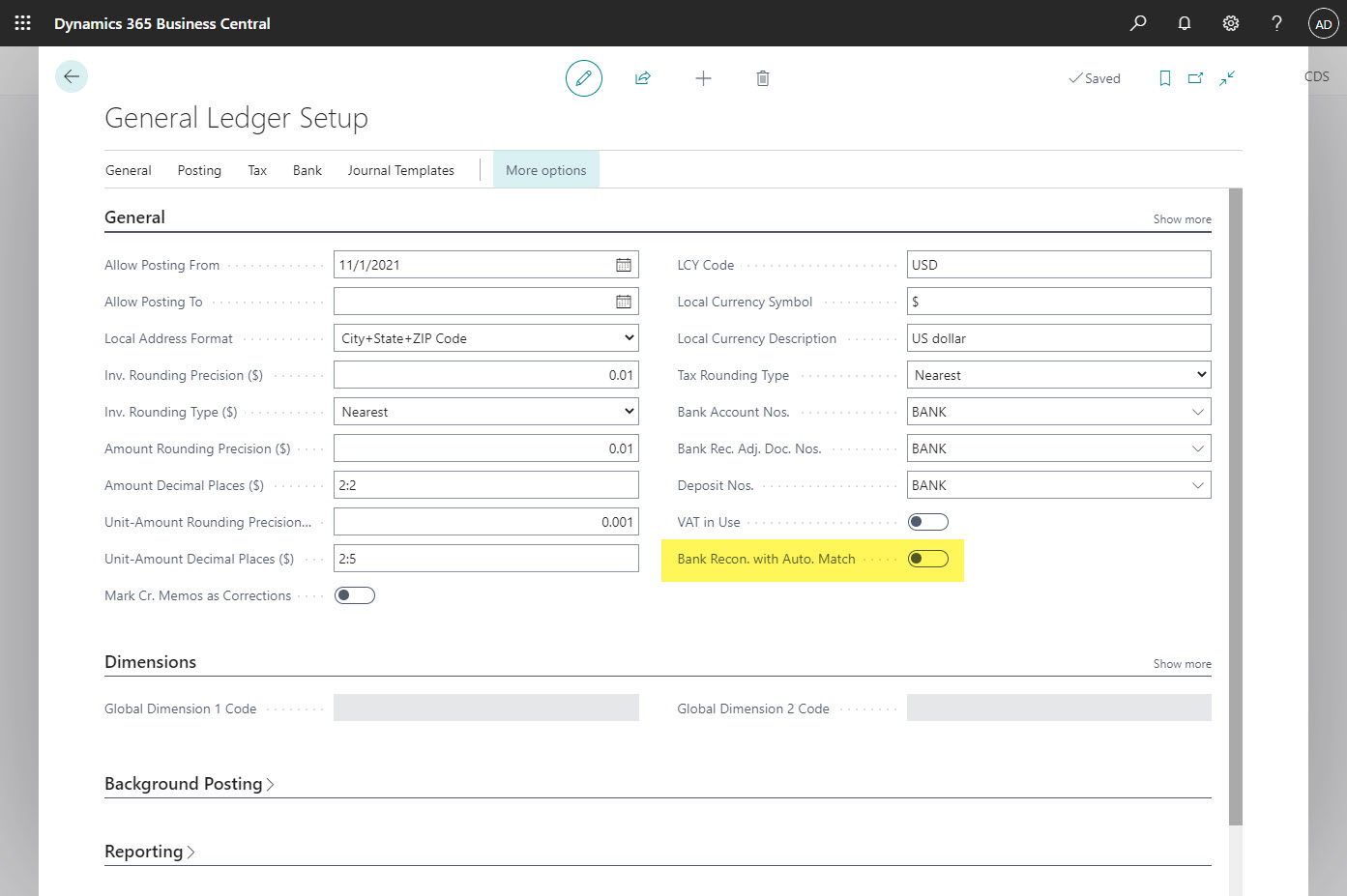
Automatically, by using the Match Automatically action.
Automatically, by using the Reconcile with Copilot action.
Also, this action is available as part of the bank reconciliation assist feature, which is an AI-powered feature.
Bank Accounts Reconciliation with Copilot
In general, Copilot in bank account reconciliation is introduced to supplement the auto-match operation. Therefore, business administrators can deploy Copilot to witness the auto match operation running first to make the initial matches. Then, Microsoft Copilot runs to match transactions that the auto match operation has not managed.
Businesses can use the following two approaches to Reconcile Bank Accounts with Copilot
Start a new reconciliation on a bank account using Copilot, directly from the Bank Account Reconciliation list.
Leverage Copilot on a new or existing reconciliation on a Bank Account Reconciliation card.
From the Bank Account Reconciliation List
For this, business administrators can create and reconcile a new bank account reconciliation from scratch.
Select the Search icon, enter Bank Account Reconciliations, and then select the related link.
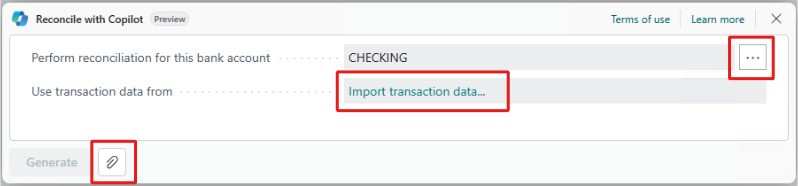
Select Reconcile with Copilotand open the Reconcile with Copilot window.
Set the Perform reconciliation for this bank accountfield to the bank account that needs reconciliation.
4. If the bank account you selected isn’t linked to an online bank account, you must import the bank statement file.
To import the file, either select the value in theUse transaction data from field or select the paper clip button next to the Generatebutton.
Use Select the file to import to import the bank statement file by either dragging it from your device or browsing your device.
5. To reconcile bank account with Copilot, select Generate.
6. Review the proposed matches.
To reconcile Bank Accounts in Microsoft Dynamics, you can connect to Globally renowned NAV/Business Central Consultants. You can easily set up Bank Accounts in Dynamics 365 Business Central and look at those transactions that are not reconciled as well.
A Step-by-Step Bank Account Reconciliation Process
Access Bank Account Reconciliation window
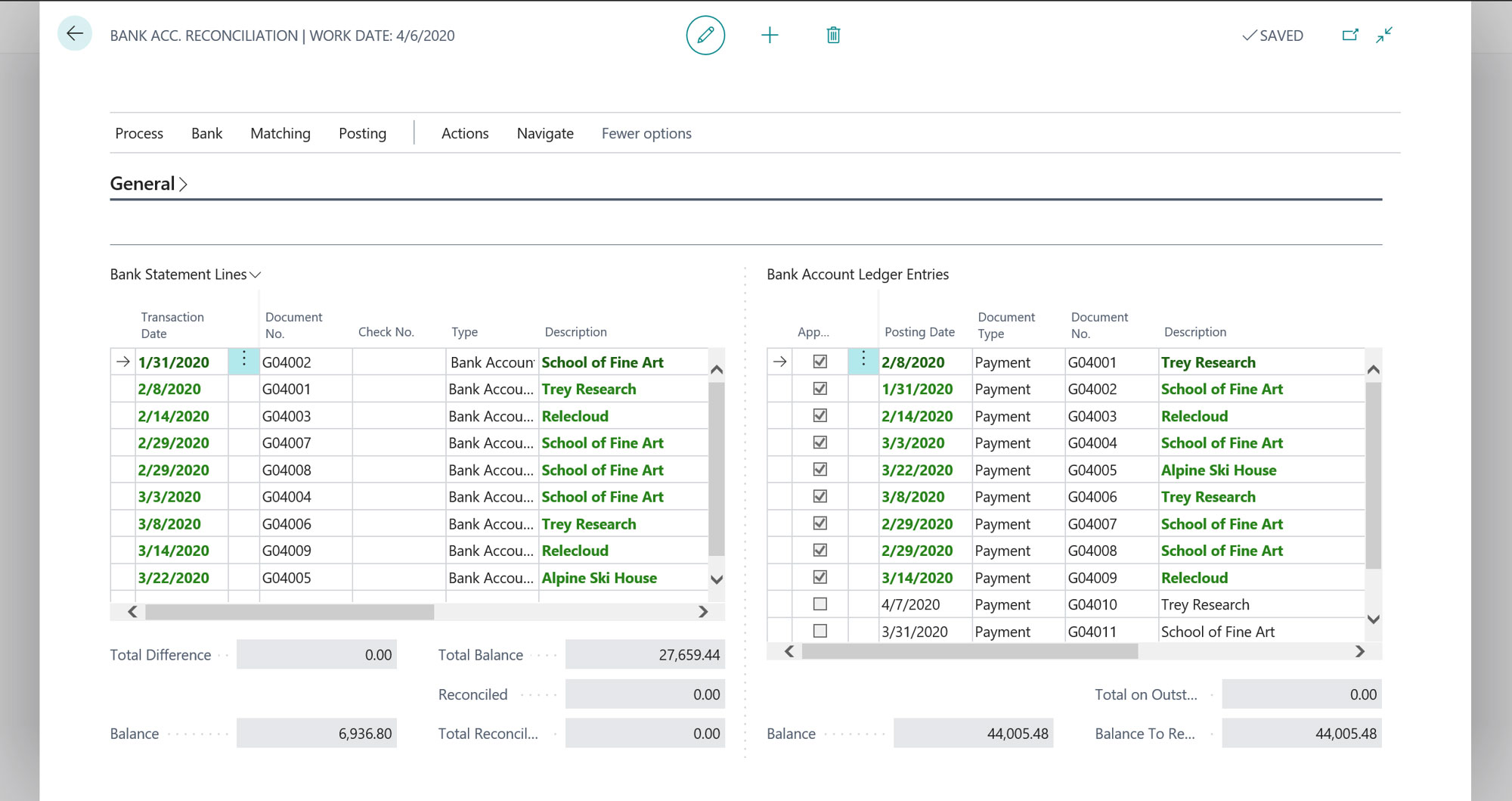
To access Bank Account Reconciliation in Dynamics 365 window, go to search. There you can generate a new reconciliation and fill in the required details. These details may include bank account name, account number etc. Here, you need to work with two panes – the Bank Statement Lines pane and the Bank Account Ledger Entries pane.
The Bank Statement Lines pane— It displays the transactions on the bank statement. For the most part, the entries can be auto-populated if you choose ‘Dynamics NAV Bank Statement Import’ or Dynamics 365 Business Central and can manually adjust to each line item.
Also, Dynamics NAV or Dynamics 365 Business Central Banking allows you to enter each line item manually by selecting the ‘Suggest Lines’
The Bank Account Ledger Entries pane— It shows the entries in the internal ledger for the bank account.
Match Entries to Reconcile
Matching is the process of reconciling the line items on the Bank Statement Lines with the entries in the Bank Account Ledger Entries panes.
Here, you have either reconciled the two panes quickly by choosing the Match Automatically feature or do it with the Match Manually function.
Post the Bank Reconciliation
Microsoft Dynamics NAV, now available as Dynamics 365 Business Central, allows you to post bank reconciliation if the Total Balance in the Bank Statement Lines is like the Balance to Reconcile field in the Bank Account Ledger Entries pane.
Here, Dynamics NAV Banking helps you to investigate the discrepancies or unreconciled line items and make changes accordingly.
Have you considered moving to Microsoft Dynamics 365 Business Central?
We all know that Microsoft Dynamics NAV has been a good ERP solution for business around the globe. However, you will be able to transform your business by stepping up to Microsoft Dynamics 365 Business Central.
For the most part, it comes with the built-in AI capabilities and seamless integrations with applications you might already use. Given these points, you can improve your business efficiency and make judicious business decisions.
Connect to Our NAV/Business Central Consultants and Experts at Banking to Lead the Competitive and Evolving Business Landscape